The timer your show deserves.

A professional stage countdown timer for live events, conferences and broadcast.

macOS · Windows · Raspberry Pi · iOS Companion · OSC · Bitfocus Companion · LTC · NDI · web mirror

Download for macOS Download for Windows Raspberry Pi (one-liner) Pricing · £8 one-off Documentation →
Companion remote for iPhone & iPad: Download on the App Store

30-day Full trial on every install. £8 unlocks every feature, for life.

UK buyers: +20% VAT at checkout · Outside the UK: flat £8, no tax added

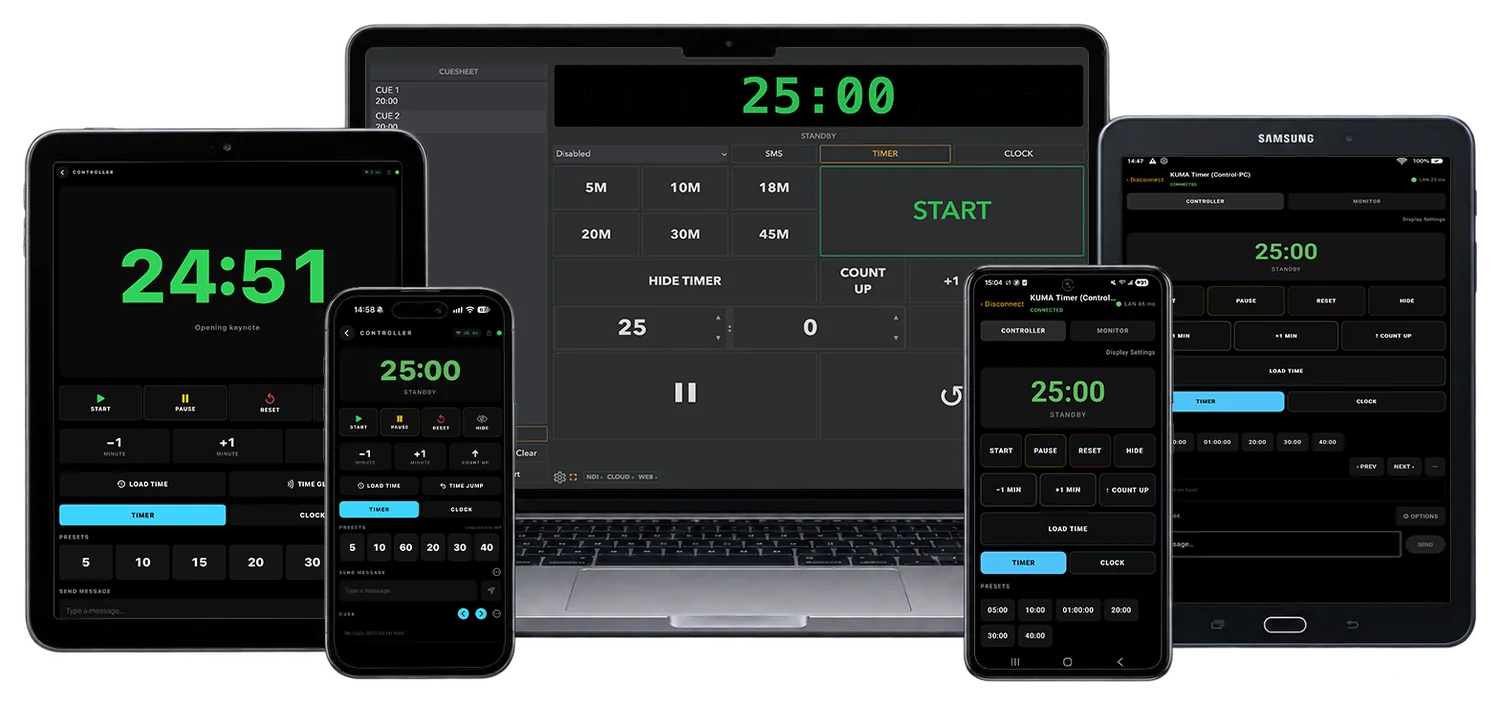
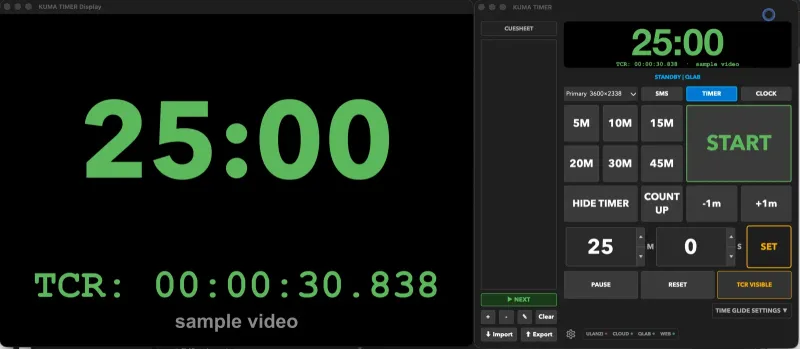
KUMA Timer stage countdown timer running on Mac, iPad and iPhone — host with full control surface plus the iOS Companion app on tablet and phone for live events

Everything you need on stage

Countdown & Count-up
MM:SS or HH:MM:SS display. Count-up overtime mode with progressive colour warnings. Clock mode shows live time of day. Send to any screen in fullscreen.
Runsheet / Cuesheet
Named cues with individual times. Double-click to load instantly. Next/Prev navigation. Drag & drop to reorder. Auto-saved.
Quick Presets
Customisable one-click preset buttons. Up to 10 in Lite, unlimited in Full. Load any time in seconds without touching a keyboard.
Time Glide
Adjust the tick speed silently so the countdown reaches zero at the precise target moment — imperceptible to the audience. Configurable glide range.
Presenter View Mode macOS · Windows
Always-on-top floating window. Works over PowerPoint & Keynote fullscreen. Drag, resize, font auto-scales to fill any size. Not available on the Raspberry Pi kiosk build — Pi runs full-screen so floating overlays don't apply.
Web Mirror & Controller
Built-in HTTP server — open the timer in any browser on your network. Password-protected /control panel lets you run the timer from any phone or tablet. Scan QR to connect instantly.
Bitfocus Companion
Official module — start, pause, reset, load cues & presets, send messages, set mode, adjust time. Boolean feedbacks for button LEDs. 18 actions, 9 feedbacks, 9 variables. v2.0 BETA available for Companion v4.3+ users.
OSC Control
Bidirectional OSC — receive commands from any automation system and broadcast live status back. Custom paths, configurable ports.
LTC Receiver
Read SMPTE timecode from any sound card input. Displays HH:MM:SS:FF in cyan — no extra hardware needed.
NDI Output
Broadcast a full 1920×1080 NDI video stream — timer, cues, message bar — to vMix, OBS, Resolume and more. Runtime bundled, nothing to install.
Send Message to Screen
Scrolling text marquee sent live to the display. Timed auto-dismiss. Saved templates for quick reuse. Customisable colours, size, position and scroll direction.
Audio Cues NEW
Stage-friendly chimes that fire at the same colour-transition thresholds the speaker already sees on screen — orange, red, time-up. Six bundled sounds, custom WAV/MP3 upload, optional BBC GTS pips for the last 5 seconds. Mirror to iOS Companion in Monitor mode (next iOS build). Read more →
KUMA Companion ON APP STORE
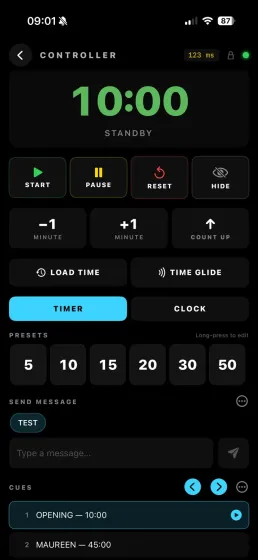
Native iPhone and iPad app, free with every Full licence. Controller view delivers Start, Pause, Reset, ±1 minute, Load Time, Count Up and the Clock/Timer toggle; Monitor view shows a full-screen mirror of the host display. Connects over local Wi-Fi or, with KUMA Live enabled, anywhere with internet. Download on the App Store →
Multi-Stage Control iPad
Run several KUMA hosts from one iPad — colour-coded "Stages" rolodex with per-stage password and live mini-status. Tap a row to take control; LAN auto-promote when the host is on the same Wi-Fi (sub-20 ms latency). Ideal for multi-room conferences, multi-stage festivals or A/B redundant timer setups.
Complete Feature List
Timer & Display
  • Countdown, count-up & time-of-day clock
  • MM:SS or HH:MM:SS format
  • Text mode or Round analogue ring
  • Background — solid colour or custom image
  • Custom text colour & font
  • Colour warnings: green → orange → red
  • Progress bar (text mode)
  • Ring: fill-up or countdown direction
  • Ring: filled / solid / outline style
  • Show cue name on display
Overtime
  • Stay at 00:00 / count-up / stop
  • Background colour change on overtime
  • Blink effect in overtime
  • OSC message on overtime trigger
Cuesheet & Presets
  • Named cues with individual durations
  • Double-click to load any cue
  • Next / Previous cue navigation
  • Drag & drop reorder
  • Customisable quick-load presets (up to 10 in Lite, unlimited in Full)
  • Manual HH:MM:SS input
Message to Screen
  • Live text overlay on display
  • Scrolling marquee or static
  • Scroll direction (invert for RTL text)
  • Position: top or bottom
  • Size: small / medium / large
  • Custom text & border colours
  • Flash effect
  • Fullscreen mode
  • Timed auto-dismiss
  • Saved templates
  • Message history
Audio Cues NEW
  • Chime at orange transition (yellow zone)
  • Chime at red transition (urgent zone)
  • Gong at time-up (00:00)
  • 6 bundled sounds: chimes, bells, gong, alarm, tick
  • Per-cue volume slider + Test button
  • Custom WAV / MP3 upload
  • BBC GTS pips opt-in (last 5 seconds)
  • Limitimer-style red-zone beep opt-in
  • Mirror to iOS Companion (next iOS build)
Remote Control & Web
  • Web mirror — timer in any browser
  • Web controller — full control from phone/tablet
  • Password protection
  • QR code for instant connection
  • Configurable port
  • KUMA Companion — Monitor view (iPhone & iPad) App Store
  • KUMA Companion — Controller view (iPhone & iPad) App Store
  • KUMA Companion — Stages mode for multi-host control (iPad only) NEW
Integrations
  • Bitfocus Companion — 17 actions, 9 feedbacks
  • OSC input & output (bidirectional)
  • NDI output — 1080p stream (bundled runtime)
  • LTC / SMPTE timecode receiver
  • CdEther — Interspace hardware display sync
  • LimiTimer — Dsan PCT-2 serial hardware
Controls & Shortcuts
  • Space — start / pause / resume
  • R — reset timer
  • H — hide / show display
  • ±1 minute buttons
  • Time Glide — silent speed adjustment
  • Presenter View — always-on-top overlay
  • Multi-monitor — send to any screen
  • macOS · Windows · Raspberry Pi · 30-day Full trial

Latest Release

Bitfocus Companion Module

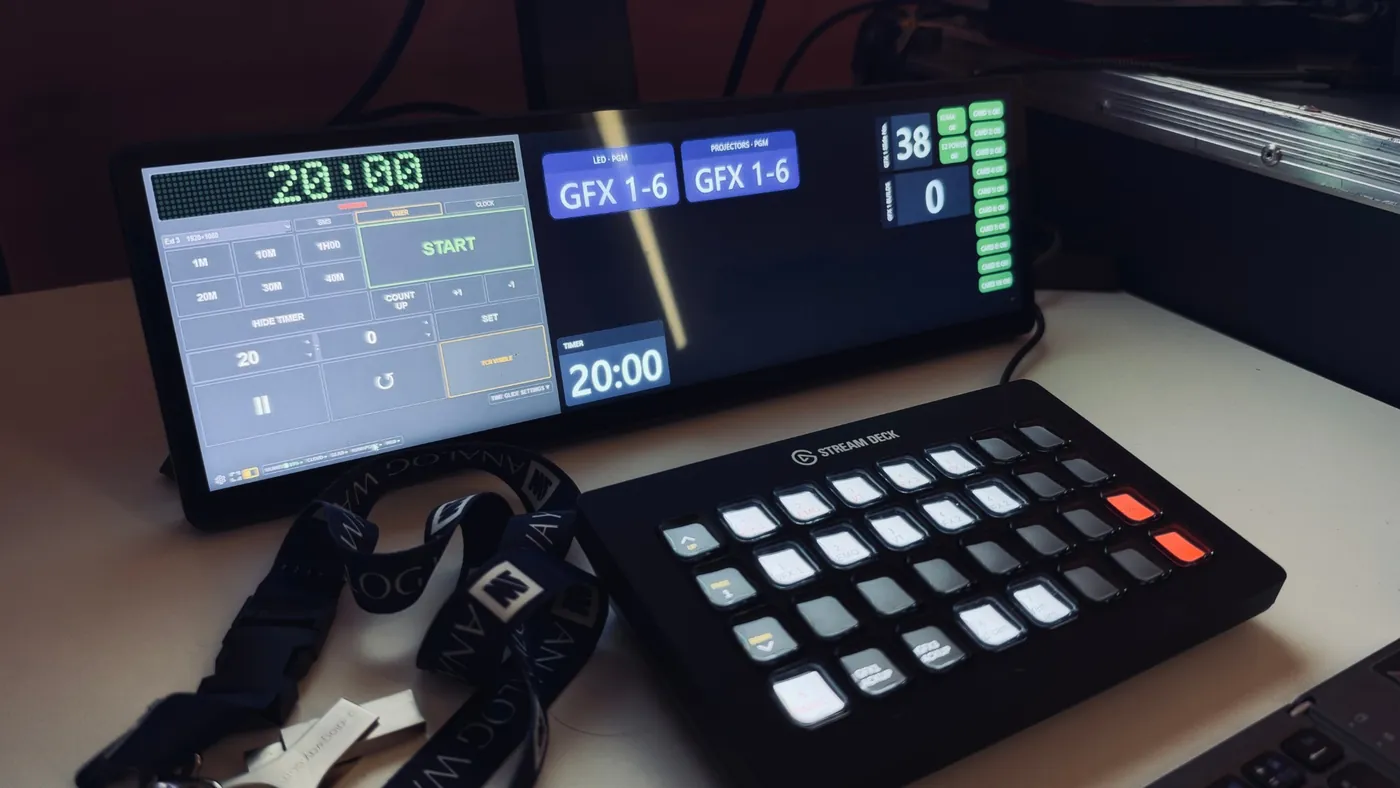
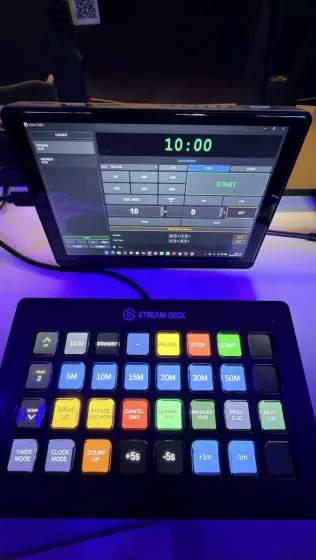
Control KUMA Timer from your Elgato Stream Deck or any Companion-compatible controller. Grab the module package and import it straight into Companion 3.x — no terminal, no developer mode.

Module status — accepted, expected in Bitfocus store ~early June 2026. pltech-kumatimer v1.8.0 was submitted on April 30, 2026 and the Bitfocus team have confirmed it will land in the official store within ~4 weeks — they're working through a Module API 2.0 backlog before merging new modules. Once it lands you'll be able to add KUMA Timer directly from Companion's built-in module search; no manual import required. Until then, use the .tgz below.
companion-module-pltech-kumatimer — stable v1.8.0
For Bitfocus Companion 3.x & 4.x · OSC · Feedbacks · Variables · Presets
 Download (.tgz)
companion-module-pltech-kumatimer — API 2.0 BETA
v2.0.0 · Migrated to @companion-module/base@2 · Requires Companion v4.3+ · Adds shared-password auth
BETA — bugs might appear. Smoke-tested locally; running publicly for ~2 months while we collect field feedback before promoting to stable. Stick with stable v1.8.0 above unless you specifically want to test.
 Download BETA (.tgz)

How to install

  1. Download the .tgz above — no need to extract it.
  2. Open Companion in your browser (usually http://127.0.0.1:8000).
  3. In the left sidebar click Modules, then the yellow Import module package button at the top. Select the downloaded .tgz.
  4. Go to Connections, add a new connection and search for KUMA Timer.
Companion Manage Modules view — Modules tab highlighted in the sidebar and Import module package button at the top

Once the module is accepted into the official Companion module library this step disappears — it'll show up in the built-in search like any other integration.

First Launch

KUMA Timer is distributed as direct downloads from this site. The macOS and Windows builds are code-signed — they install without Gatekeeper / SmartScreen warnings. The Raspberry Pi kiosk ships as an AppImage (AppImage convention — Linux apps are not code-signed). Every install starts with a 30-day Full trial — no card, no sign-up.

macOS SIGNED

No Gatekeeper warning — Apple-notarized DMG. Double-click, drag to Applications, done. Works on macOS 13+ (Apple Silicon).

Buy for £8
30-day Full trial · £8 to keep it
Every install begins with 30 days of Full-tier features. Enter a £8 licence to retain Full for life — or revert to Lite (free, core countdown only) at any time.
Windows SIGNED

No SmartScreen warning — Azure-Trusted-Signed EXE installer. Runs on Windows 10 / 11 (x64).

Buy for £8
One licence — every platform
The same £8 code activates Full on macOS, Windows or Raspberry Pi. Move between machines any time via the deregister portal.
Raspberry Pi — kiosk install

One command turns a fresh Pi 4 or Pi 5 (Pi OS Bookworm 64-bit) into a dedicated KUMA Timer appliance — fullscreen timer on boot, web admin on the LAN. The installer handles every apt dependency; you don’t need to touch the AppImage manually.

Paste into an SSH session (or local terminal):
curl -fsSL https://raw.githubusercontent.com/pltech-dev/kuma-timer-releases/main/install-pi.sh | sudo bash

View script source on GitHub →

Installs KUMA in kiosk mode (fullscreen timer on boot, web admin at http://<pi-ip>/, default login kuma/kuma). Later updates from the web panel or sudo /opt/kuma-timer/update-kuma.sh.
📖 Full Raspberry Pi install guide →

Pi kiosk needs a Full licence. The kiosk is driven entirely from the web admin panel (a Full-tier feature) — during the 30-day trial everything works with no code, after that enter a £8 Full licence from the web admin's License panel. The same code works on Mac, Windows or Pi — one machine at a time.

Support the project
Already own a Full licence? A coffee goes towards the next feature.

☕  Buy me a coffee
Network Access — Firewall Dialog

On first launch KUMA Timer will ask for permission to accept incoming network connections — this is required for OSC, Web Mirror, Web Controller and NDI.

🍎 macOS
A dialogue will appear: "Do you want the application 'KUMA Timer' to accept incoming network connections?"
Click Allow.
🪟 Windows
Windows Defender Firewall will ask to allow KUMA Timer on private/public networks.
Check Private networks and click Allow access.
Minimum screen resolution — 1280 × 768. On very small screens the control panel may extend beyond the visible area. If the title bar is hidden: right-click the taskbar icon → Move, then use the arrow keys.
Feature matrix

What's in each build?

Same codebase, three platforms. This table shows what each platform can do — the tier you run (Lite or Full) decides which of these are actually unlocked on your install. See the Lite vs Full comparison on the pricing page.

Feature 🍎 macOS 🪟 Windows 🥧 Raspberry Pi
Core timer
Countdown, count-up, pause, reset, hide
Presets (quick-load & editor)
Cues — load / next / prev / edit
HH:MM:SS mode for long cues
Time Glide (smooth time stretch)
SMS flash message overlay
Clock mode (wall clock)
Display
Fullscreen text / round display modes
Color thresholds + progress bar styles
Custom fonts + background image
Presenter View (second monitor)
Network integrations
OSC in/out (Companion, QLab, etc.)
LTC timecode input
Bitfocus Companion module
Web admin panel (any device on LAN)
KUMA Live cloud share (QR + link)
KUMA Companion app (iPhone & iPad)
NDI® output
CDEther (Interspace Ind.) hardware displays
LimiTimer / DSAN PCT-2 (USB serial)
Deployment & updates
Kiosk mode — fullscreen on boot, no desktop
Auto-start on power-on (systemd)
One-click update (web admin button)✓*✓*
Config export / import (sync between devices)
Code-signed installer (no browser warning)
Raspberry Pi — minimum
Pi 4 (1 GB RAM) or newer. Pi OS Bookworm 64-bit. 16 GB SD card.
NDI® output is not available on Pi from v1.10.23 onwards (NDI® licensing) — see FAQ. Use macOS or Windows for NDI® broadcast.
macOS — minimum
Apple Silicon (M1/M2/M3/M4). macOS 12 Monterey or newer.
Signed with Apple Developer ID + notarized. No Gatekeeper warning.
Windows — minimum
Windows 10 or 11, 64-bit. 4 GB RAM.
Signed with Azure Trusted Signing. Publisher shown as PL TECH LIMITED.

✓* = works with caveat — hover for details. Changes ship regularly; this table reflects the latest stable release.

Anonymous usage statistics — on first launch KUMA Timer will ask whether you'd like to share anonymous usage data. If you agree, the app sends: Hardware ID (anonymised identifier derived from your network card), OS name & version, and app version. Nothing else — no names, no files, no location, no IP address stored.

Participation is entirely optional. You can opt in or opt out at any time in Settings → Misc → Privacy.

OSC Reference

Control KUMA Timer from Bitfocus Companion or any OSC-capable device. Default listen port: 9000

AddressArgumentAction
/kuma/startStart timer
/kuma/pausePause / resume toggle
/kuma/resetReset to zero
/kuma/hideToggle display visibility
/kuma/time/add+1 minute
/kuma/time/sub−1 minute
/kuma/warpint secondsLoad duration (e.g. 300 = 5:00)
/kuma/presetint ≥ 0Load preset by index (0 = first). Range depends on how many presets you've configured — max 10 in Lite, unlimited in Full.
/kuma/cueint indexLoad cue from runsheet
/kuma/settimestring HH:MM:SSLoad exact time (e.g. "01:30:00")

Feedback from KUMA → Companion (default 127.0.0.1:12321):

AddressValueSent when
/kuma/timerstring e.g. "04:32"Every 500 ms
/kuma/status"LIVE" · "PAUSED" · "STANDBY" · "HIDDEN"On state change
/kuma/overtime1On overtime start